


In this quick Unity tutorial, I'll show you how to align the Main Camera with the Scene view, plus a few useful tips!
Video Transcript
In Unity, to quickly position and orient the selected game camera so it matches the Scene view, simply press CTRL SHIFT F. This is the shortcut for the Align With View command, available in the GameObject menu.
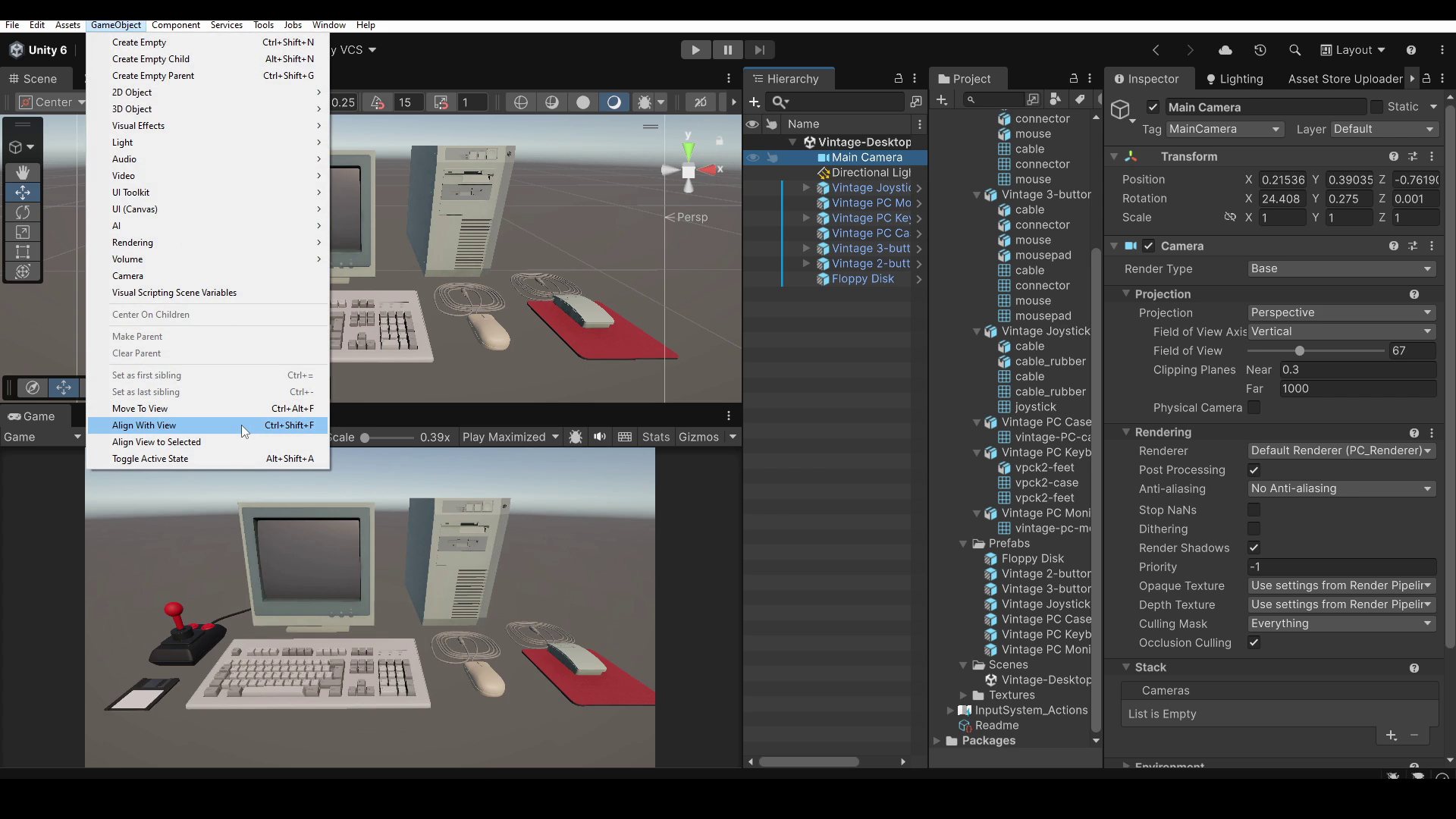
The F key stands for Frame and allows you to quickly focus the Scene view on a selected object. The CTRL SHIFT F shortcut, on the other hand, aligns the selected object with the current view. For this reason, remember to select the camera you want to align first, or you may end up changing the orientation of another object in your scene!
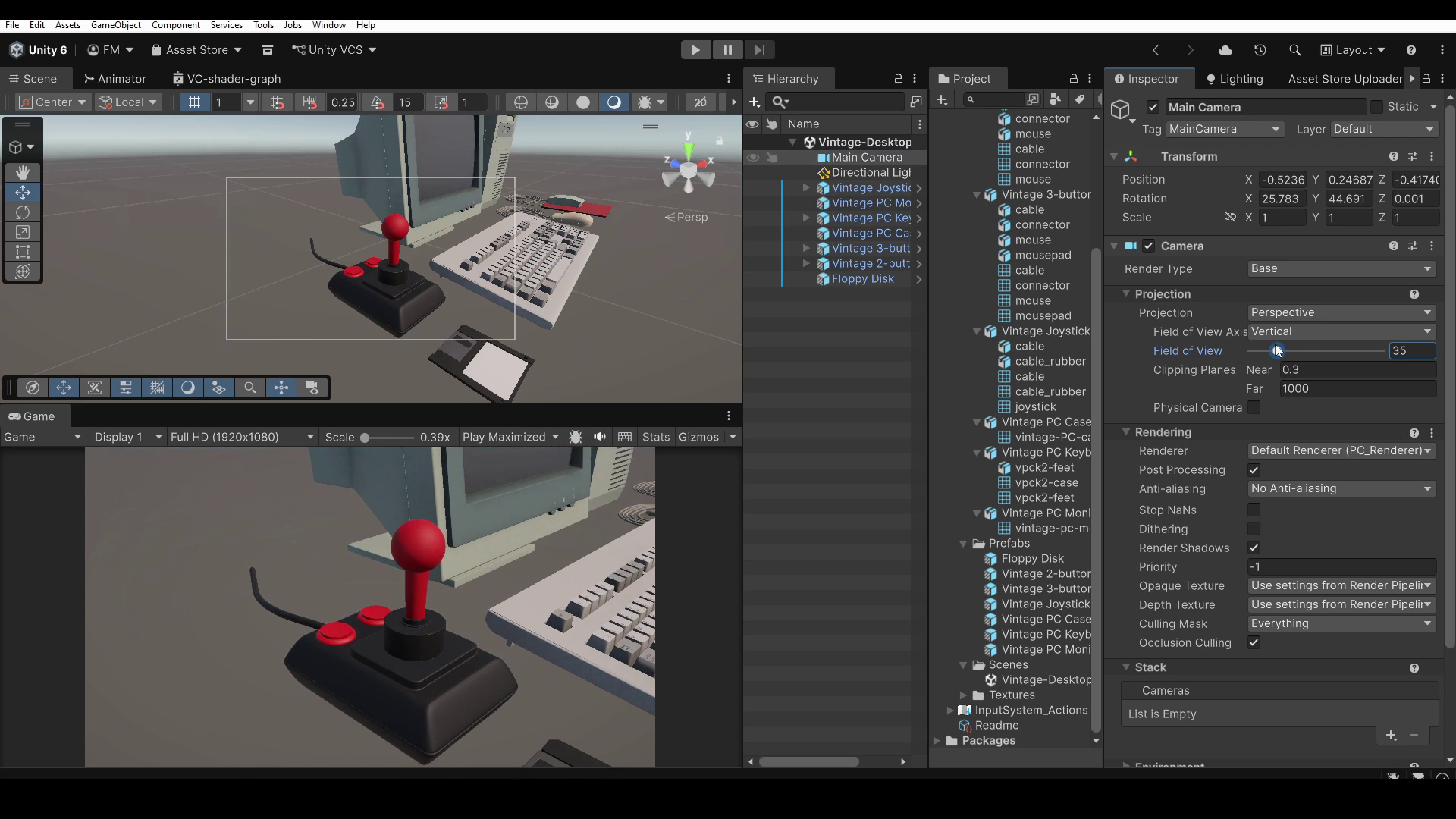
However, keep in mind that the Game view may look slightly different from the Scene view, for two reasons. The first is the camera's Field Of View value, which may be different from the Scene view's Field Of View. You can adjust it in the Inspector of the selected camera.
The second reason is related to the Aspect Ratio and zoom level set in the Game window. For example, if Scale is set to 1, but the selected Aspect Ratio produces an image too large to fit inside the Game window, you will only see part of the image.
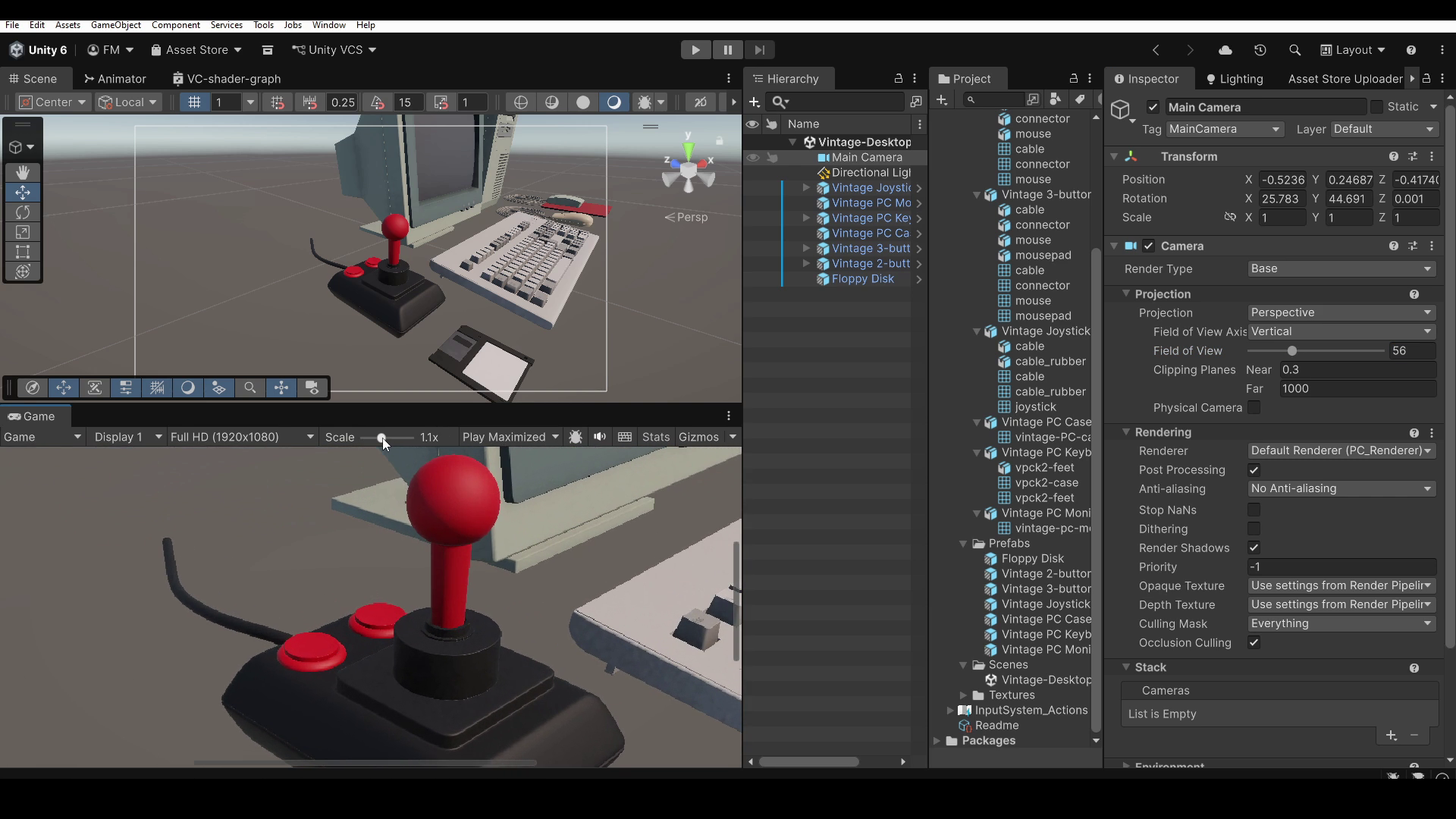
To fix this, simply adjust the Scale value until the entire image fits inside the Game window.
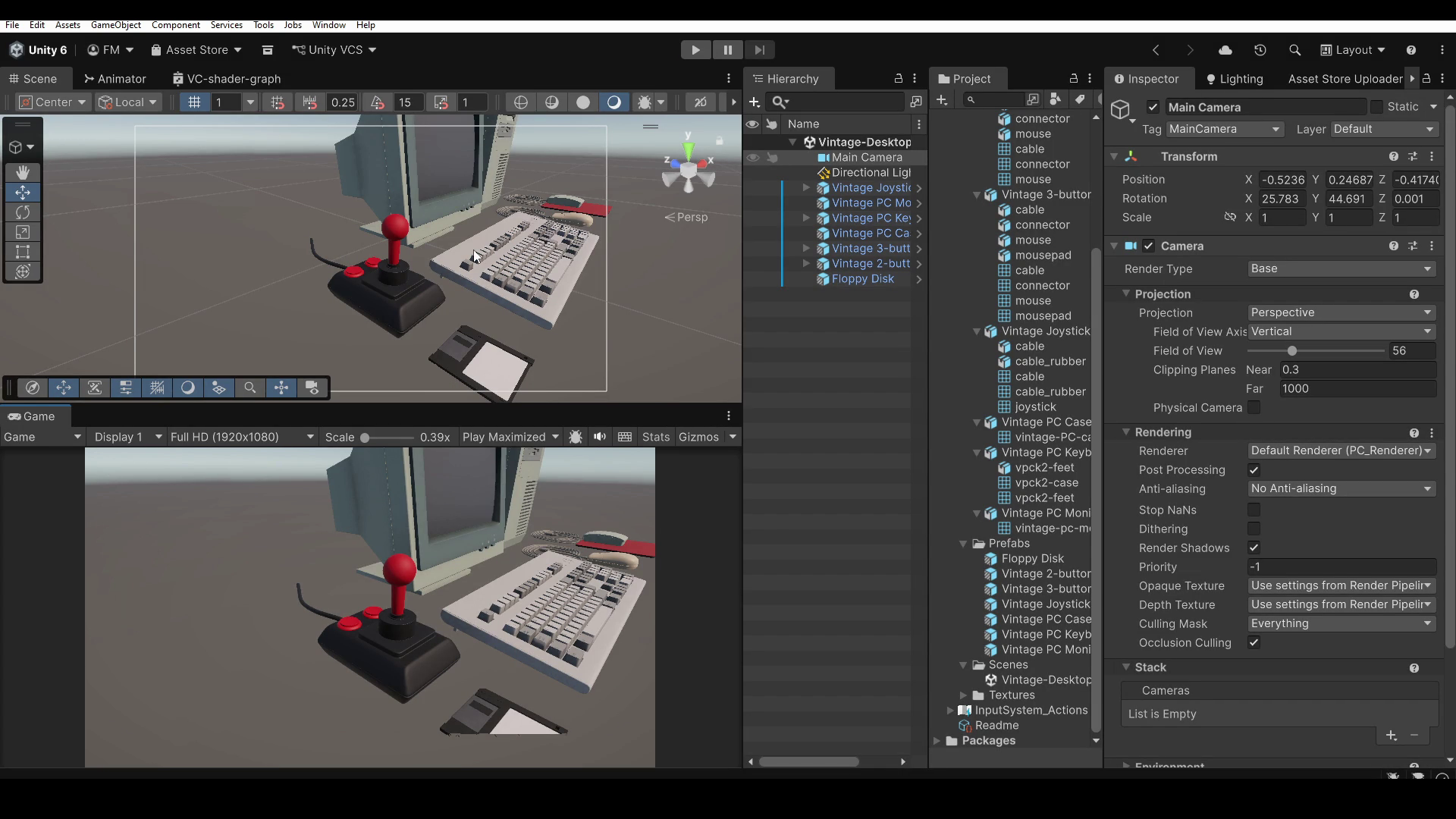
Depending on your camera framing, you may also notice some strange visual issues with objects that are too close to or too far away from the camera. This happens because the Game view only displays objects located between two distances from the camera, called Near Clipping and Far Clipping.
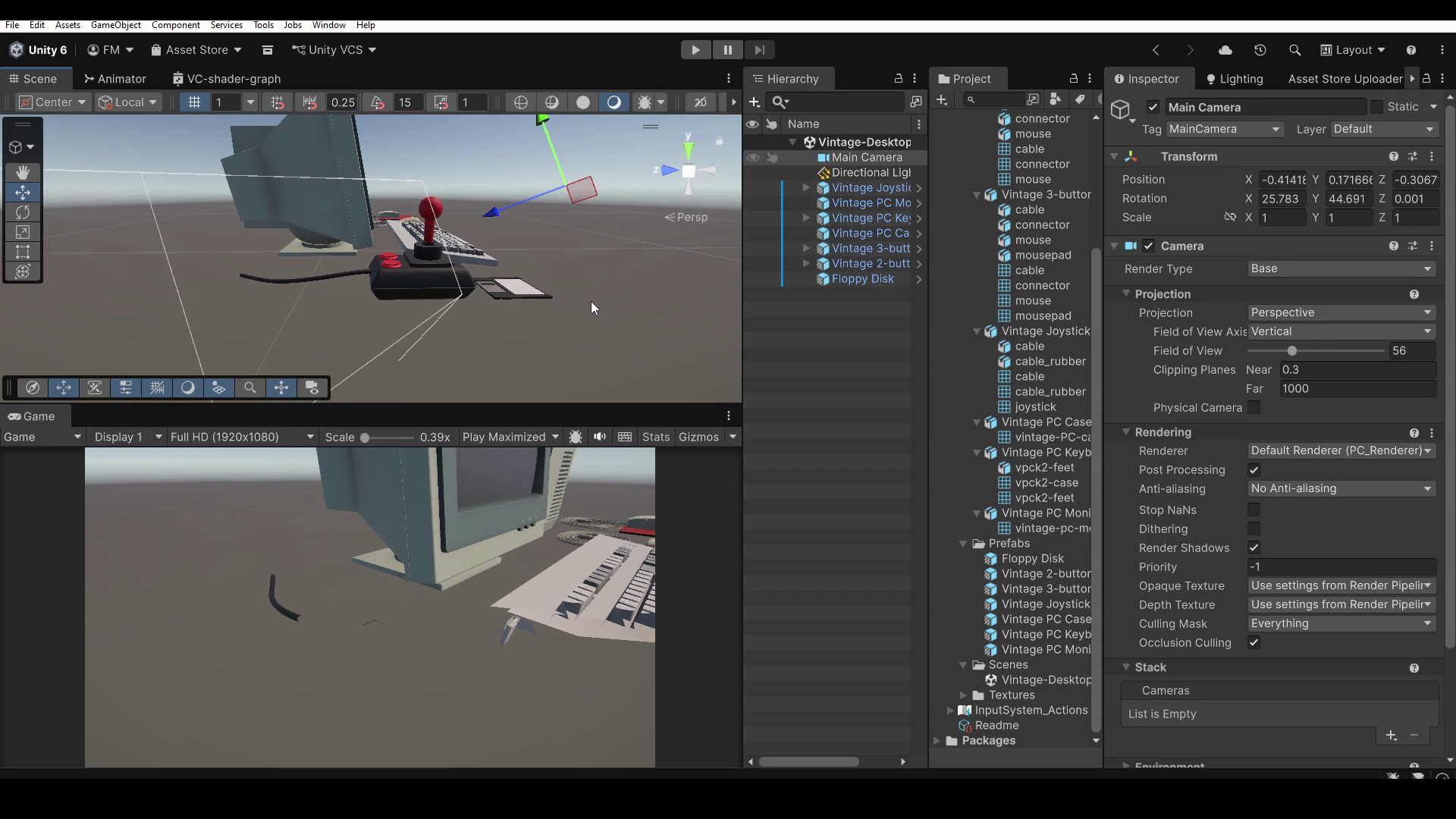
You can find these values in the camera's Inspector. For example, you can reduce the Clipping Planes Near value to correctly display objects closer to the camera, or increase the Clipping Planes Far value to make distant objects visible. However, avoid using excessively large clipping ranges, as they can cause visual artifacts.
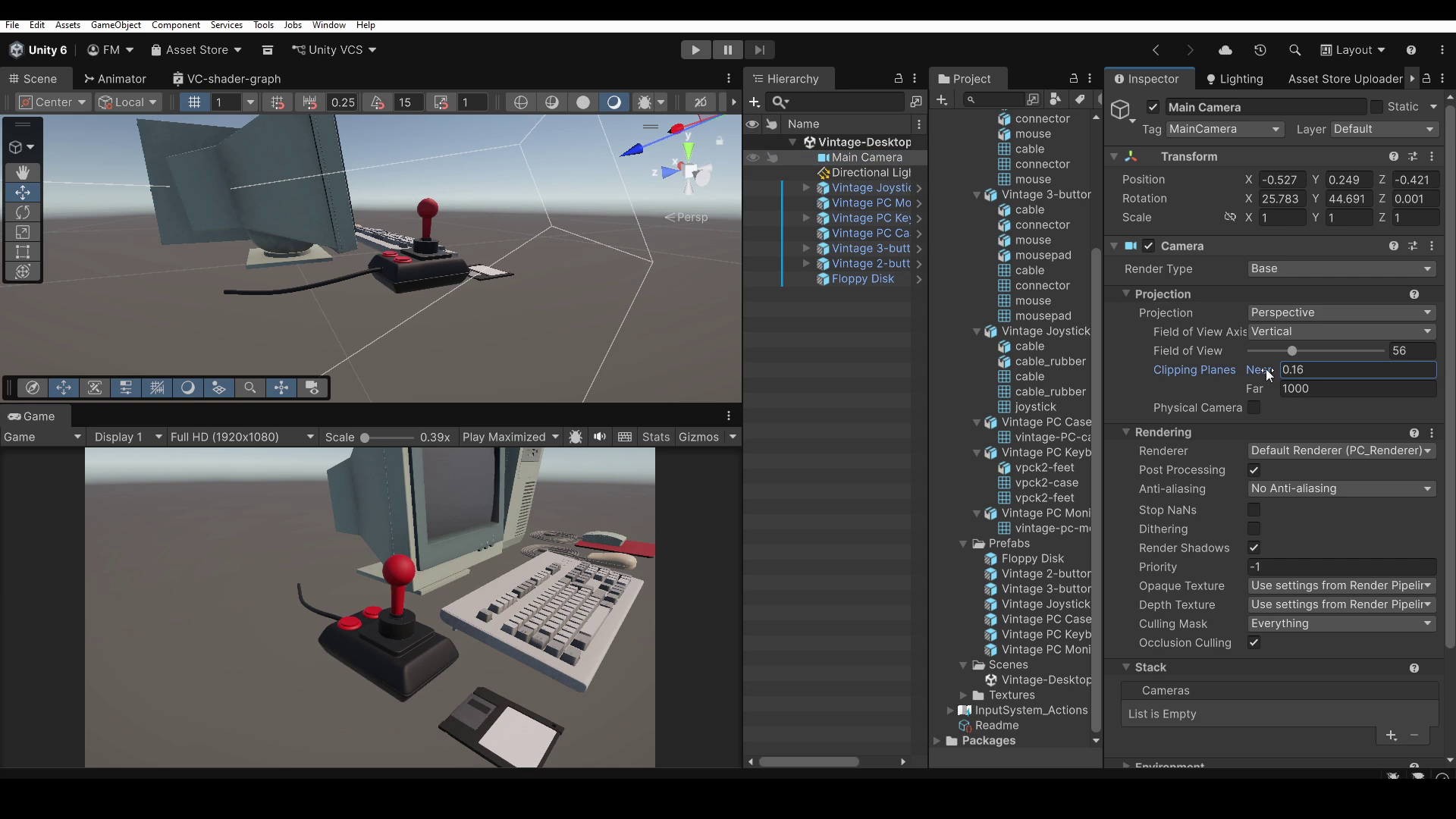
Before ending this very short tutorial, I want to show you another similar feature that may come in handy. It's called Move To View, and you can find it in the GameObject menu. Its shortcut is CTRL ALT F.
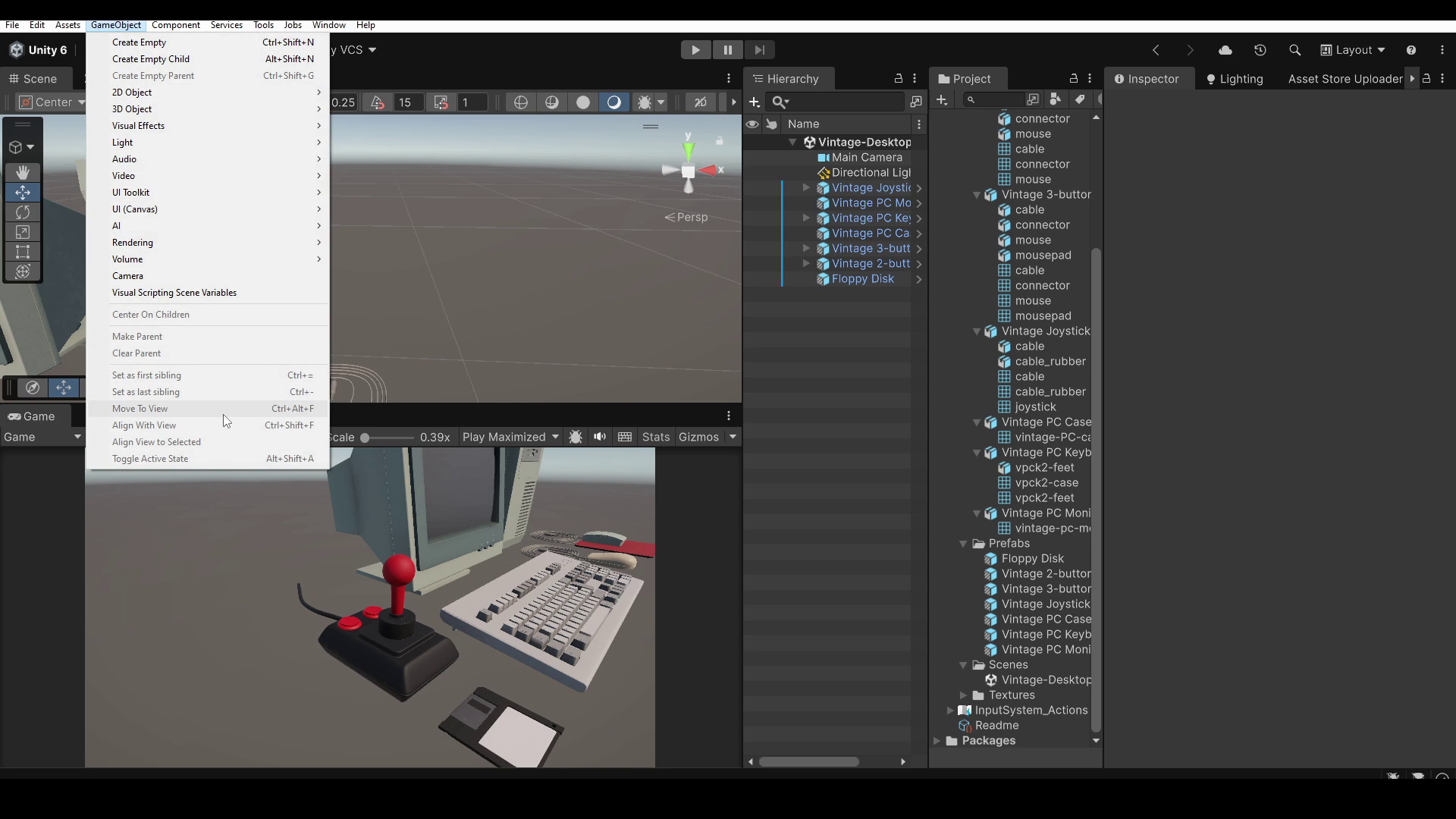
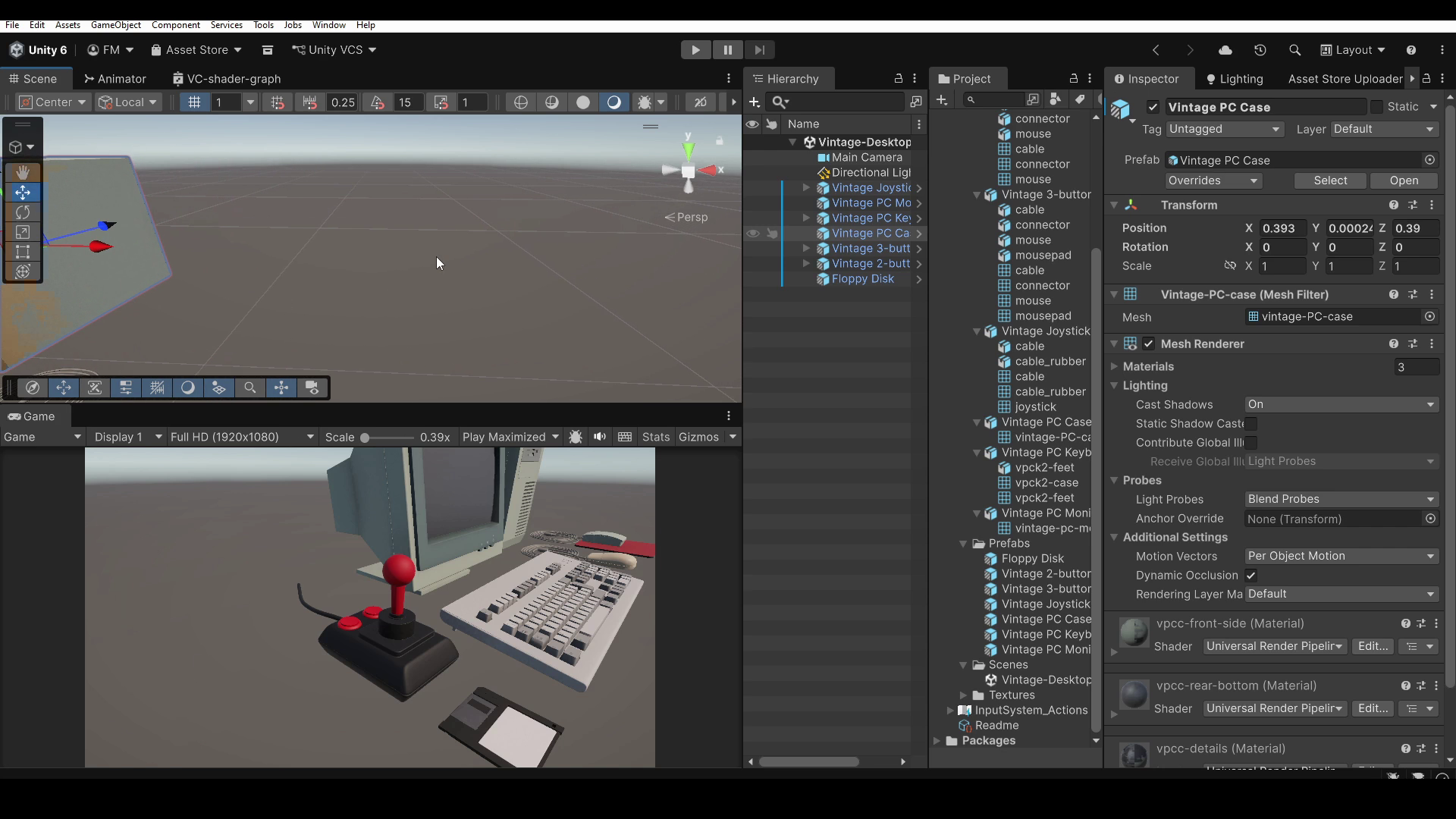
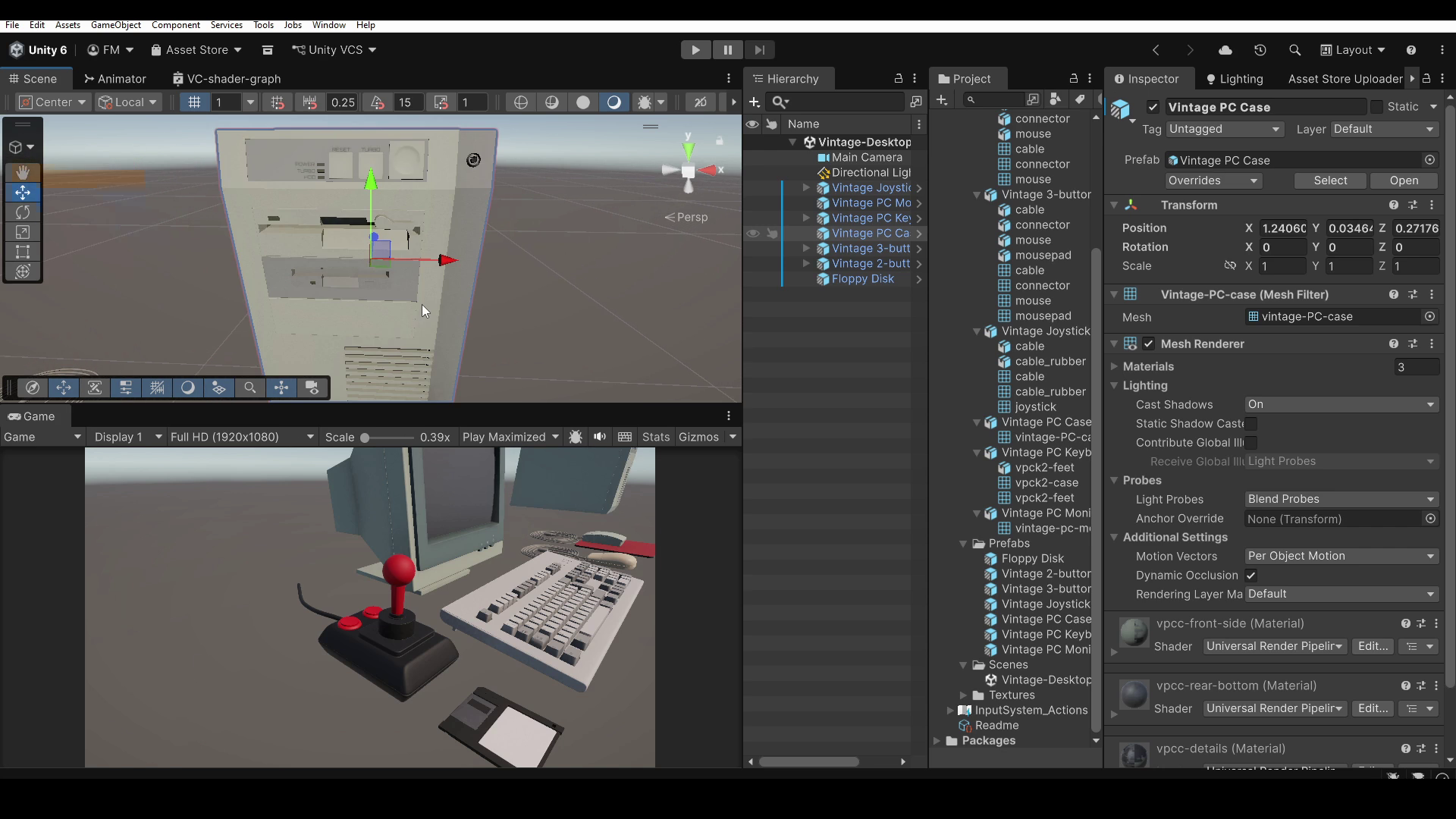
Move To View moves the selected object to the Scene view pivot, which is the central point used for orbiting during navigation, without changing the object's orientation. This can be useful for placing a character or another object at a specific location in your scene. Simply navigate to the desired location in the Scene view and use the command, without having to move the object manually.
Well, that's all for this quick tutorial! You can find a written version of this tutorial, along with more resources, on my website, also available in other languages. The link is in the description. If you found this tutorial useful, you can support me by leaving a Like and subscribing to the channel! See you soon!